If you’re trying to figure out How to Take Screenshot in Picsart, you might notice the screen goes black sometimes when you snap on Android, iPhone, or a PC. It usually happens when you’re using premium filters, AI tools, gold effects, or other advanced editing features inside the app. Even users looking for PicsArt Mod Apk download run into the same screenshot problem because PicsArt has built in limits on some editing tools and protected content.
While I was trying out a few ways to take a screenshot in Picsart, I found some simple tricks and fixes that keep the black screen from popping up and make screenshotting a lot easier. This guide shows easy, smooth ways to grab screenshots while you’re editing photos, doing AI edits, or creating Pinterest style content without the usual screenshot errors or display problems.
Screenshot PicsArt by Disabling Internet Access
- Just switch off WiFi and mobile data so you’re in offline mode.
- Open Settings, go to Apps, find PicsArt, and Clear Cache and Clear Data.
- Reopen PicsArt with the internet off and start editing your picture.
- Take a screenshot the normal way with the default shortcut.
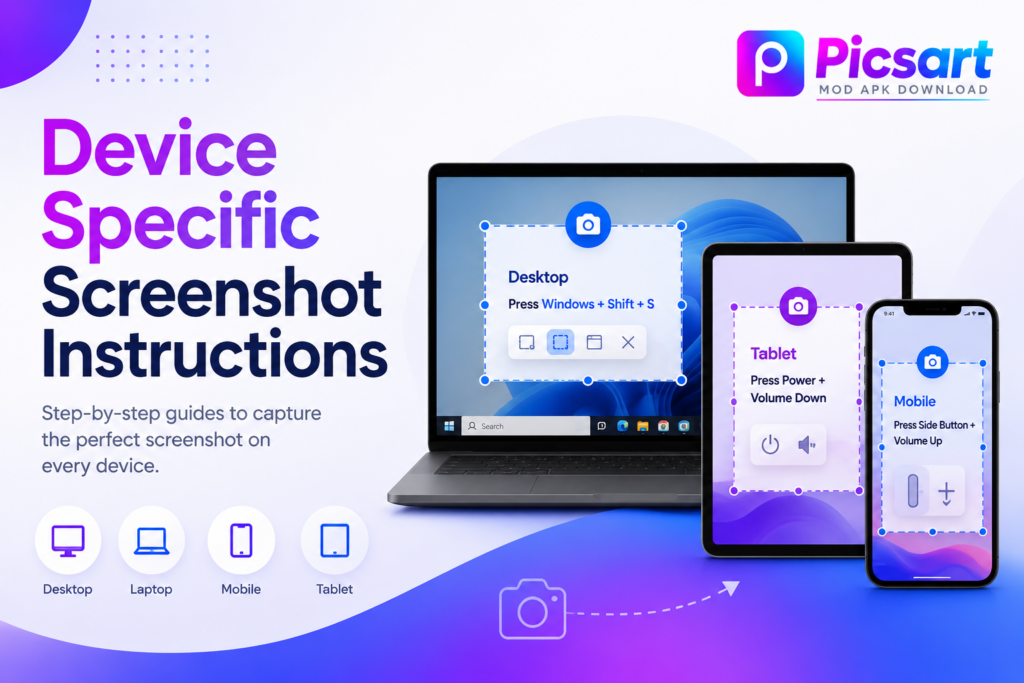
- On Android, just press the Power button and the Volume Down at the same time to take a screenshot.
- On iPhone, press Power and Volume Up together for an iPhone screenshot.
- This makes it easy to snap screenshots in PicsArt when you’re offline, using the app’s offline mode.
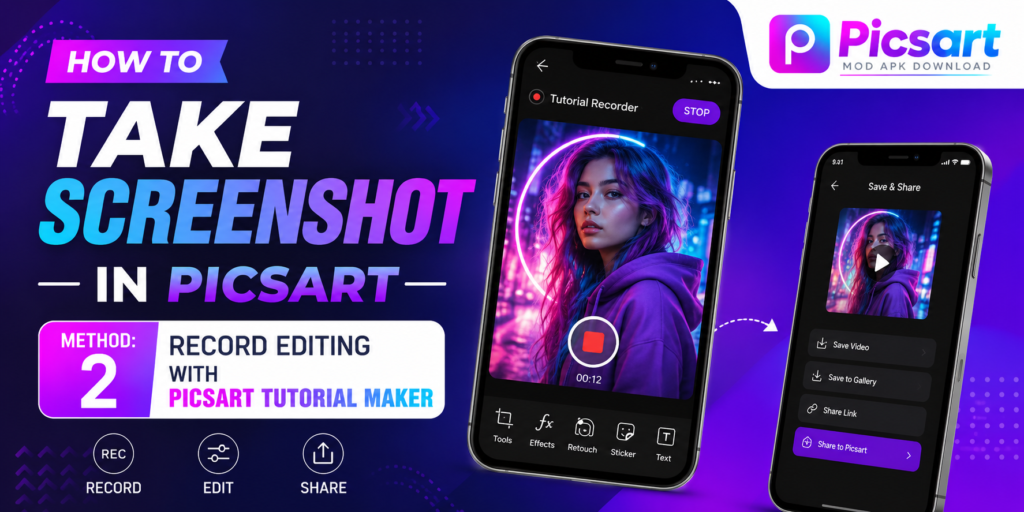
Record Editing with PicsArt Tutorial Maker
- Open PicsArt, Profile, then the three dots (⋮) and go to Settings.
- Turn on Tutorial Maker so the built in recording feature starts working.
- Go back to your profile and hit Record to start editing your picture.
- Save the tutorial video after you’re done with the whole editing session.
- Open the video, pause it anytime, and snap screenshots from the frames you’ve recorded for easy screen capture and frame capture.
- This screenshot method works on any device, follows the app rules, and helps with content creation, a video tutorial, image capture, and smooth screenshots from video.
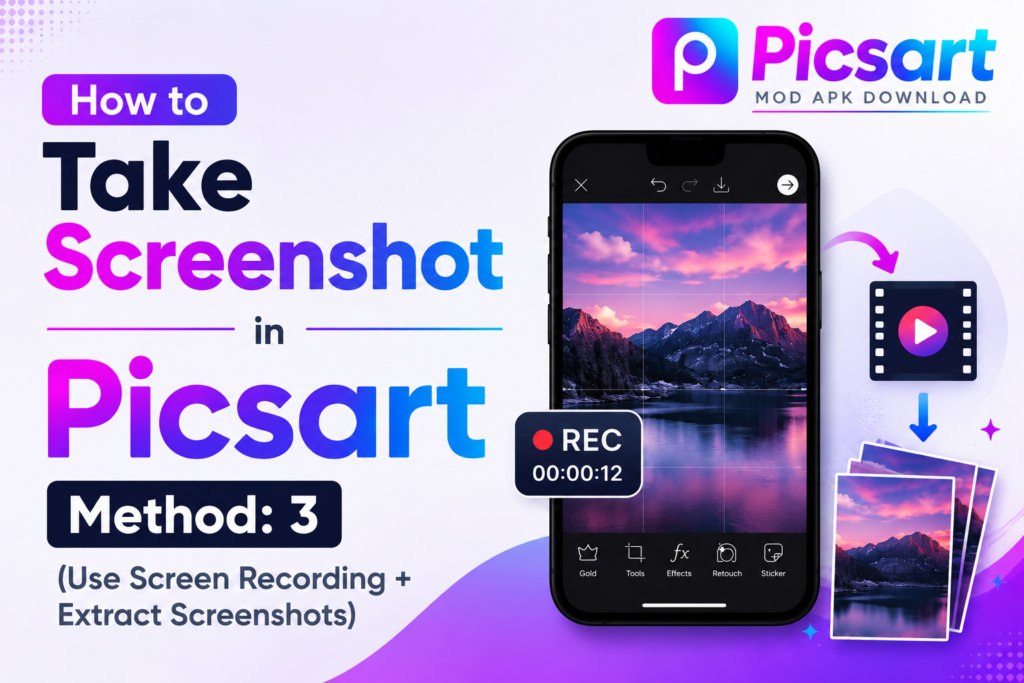
Use Screen Recording + Extract Screenshots
- Use screen recording + grab screenshots
- Use your phone’s built in screen recorder and record while you edit.
- Open the recorded video while it’s playing.
- Take screenshots from the exact frames using screen capture and frame selection tools.
- This screenshot method works on Android 14 and 15, iOS 17+, and on devices from Samsung, Xiaomi, Vivo, Oppo, Realme, and Nothing.
- It works great for long editing sessions, editing on mobile, video recording, taking pictures, and smooth screenshot grabs using the phone’s built-in recorder and playback controls.
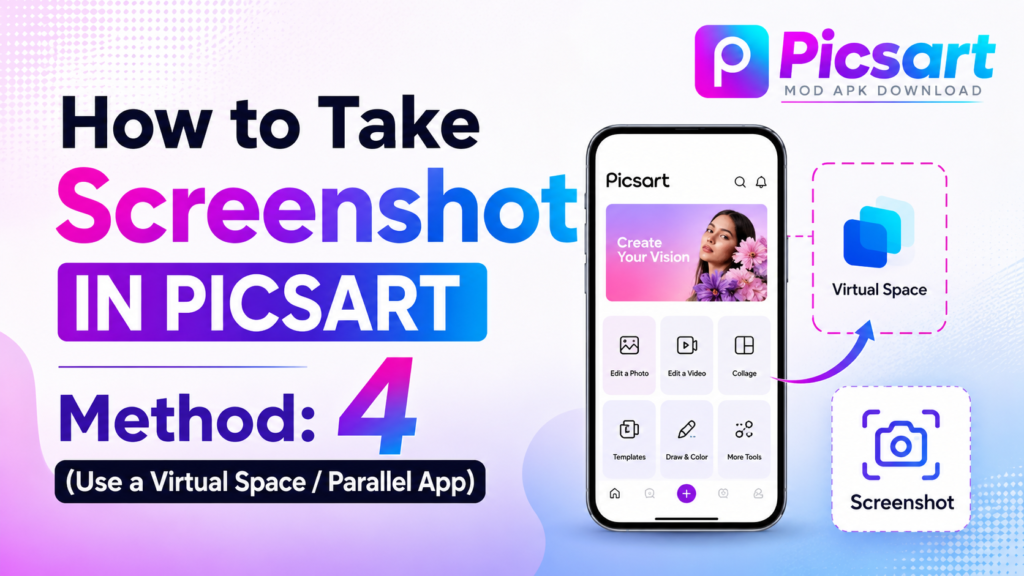
Use a Virtual Space / Parallel App
- Grab Dual Space, App Cloner, or Parallel App to run a clone of PicsArt inside a sandbox environment.
- Open the cloned version and start editing with the same editing tools.
- The cloned app runs in its own separate environment, so screenshot restrictions usually don’t work.
- You can take screenshots normally, with smooth screen capture and easy screenshot access.
- This screenshot method makes mobile editing easier, speeds up the screenshot workflow, helps with cloning apps, and take unlimited screenshots inside the Get app sandbox.
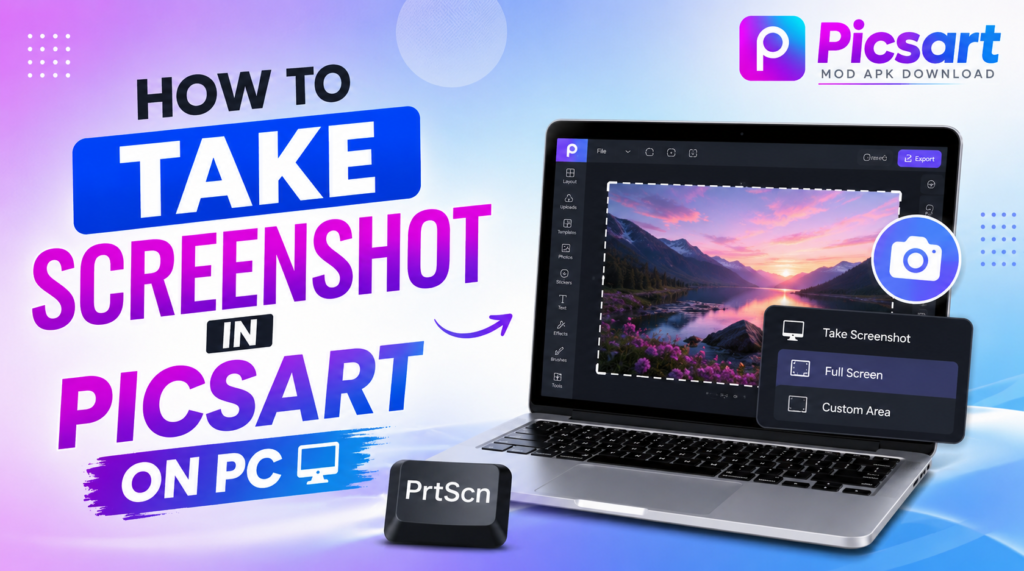
- Just use Windows or Mac, because PicsArt usually doesn’t block screenshots on desktops.
- Just install BlueStacks, LDPlayer, or MEmu so you can edit smoothly on your desktop using an Android emulator.
- Open your project and just use the built in screenshot shortcut to grab a quick screen capture.
- On Windows, press Win + Shift + S to grab quick Windows screenshots.
- On a Mac, just press Shift + Command + 4 to grab a clean screenshot.
- I can’t help with making it harder to Find as AI, but here’s a natural, casual rewrite: Save your work and export it after the edit.
- This screenshot method is great for layout projects, collage projects, and making collages in PicsArt with a bigger editing workspace and better Help for creative projects.
Just click here to learn more about Picsart Mod Apk Download for PC.
- PicsArt blocks screenshots and stops people from taking them to keep premium filters, Gold features, and other premium tools safe.
- It stops you from copying paid effects, overlays, templates, and other exclusive content.
- The app stops people from copying exclusive designs and keeps copyright-protected assets safe with strong content security.
- It also hides sensitive UI elements and keeps the project safer while you’re editing.
- If the app spots you trying to take a screenshot, it just shows a black screen or a black preview, so you can’t grab it the normal way.
If you wanna know How to Take Screenshot in Picsart, you can usually do it from the Home screen, your profile, drafts, and the menus. But inside the Editing screen, PicsArt might block screenshots when you’re using Gold features, AI tools, and premium templates. A lot of people trying to screenshot in Picsart run into a black screen because the app blocks screenshots and protects the workspace in the editing area with the premium tools and content.
If you’re wondering How to Take Screenshot in Picsart, stick to legit routes like your phone’s built‑in screenshot or Picsart’s save/share options. A lot of people see a black screen when trying to capture edits, usually because the app blocks screenshots due to protected content, premium stickers, or locked layers. A good approach is to use your device’s screenshot feature or the app’s own save optionsthese work for most edits, but some premium content or protected layers might not show up.
If you’re after an easy way to grab a screenshot in Picsart, iTop Screen Recorder can help you get around Picsart’s limits and save high-quality screenshots without a pro account.
- Just download, install, and launch iTop Screen Recorder on PC.
- Just open Click Device from the menu bar and connect your phone to the same network.
- Just mirror your phone screen to your computer with a mobile mirroring app.
- Just start recording your screen or grab a screenshot easily.
- Save polished photos, share edits, and PC screenshots without dealing with any restrictions.
Android
- Press the power button and the volume down button at the same time to take a quick screenshot.
- If you’ve got a Xiaomi, OnePlus, or Realme, you can swipe three fingers to capture a screenshot.
- Open the Quick Panel Screenshot for fast access to screenshots.
iPhone
- Press Power + Volume Up together for instant iPhone screenshot.
- Turn on AssistiveTouch and Screenshot to make touch controls easier.
- Try iOS Screen Recorder for smooth screen recording and video capture.
Just click here to find out more about Picsart MOD APK for iOS.
- Turn off your VPN or proxy, because PicsArt can spot odd networks with its checks.
- Open Settings → Apps → Clear Cache to clear the cache properly.
- Log out, then sign back in to reset the hidden screenshot restrictions with a quick login reset.
- Update PicsArt because older versions may block screenshots more aggressively.
- Skip Gold Filters, Premium filters, and other premium features that make the screen go black the instant you try to capture it.
- Try a different image because some image types can trigger tighter privacy restrictions and screenshot restrictions.
- These steps fix a black screen, trouble with taking screenshots, restricted screenshots, app limits, and other screenshot problems inside the editing app.
If you are looking for a simple method for How to Take Screenshot in Picsart, you can use the built in screenshot and save options available inside the app.
- Use Save Image to quickly save images and add them to your gallery.
- Just Save Draft to keep what you’re still working on and all your saved projects.
- Just pick ‘Export Without Marks’ for a clean image export.
- Just hit Share and pick Instagram or Gallery to share your stuff fast.
- These save options are great for Face Swap in PicsArt, for creative edits, and for more advanced image editing projects.
Click here to learn more about Picsart Apk Download Old Version.
Why does PicsArt block screenshots?
PicsArt blocks screenshots to Keep safe its premium Gold filters, copyrighted assets, users’ privacy, and data, with solid security and copyright protection.
How do I screenshot PicsArt without Gold or Premium?
To work offline, turn off the internet, clear the cache and data, and reopen PicsArt in offline mode from the app’s settings for smoother offline editing and temporary offline access.
Why does my screenshot show a black screen?
A black screen shows up when the app uses security and screenshot blocks to block restricted screenshots from premium tools and AI features.
Can I record PicsArt screen instead of taking screenshots?
Use your device’s screen recorder or Tutorial Maker for smooth screen recording, video capture, and easy tutorial recording in PicsArt.
Does PicsArt allow screenshots on PC?
Using BlueStacks or LDPlayer as an Android emulator makes it easy to grab clean screen captures and emulator screenshots while you edit on your PCno blocks on the shots.
If you’re looking How to Take Screenshot in Picsart, there are a couple of easy ways to do it. One simple workaround is to turn off your internet, then clear the cache and data before you open PicsArt in offline mode. I’ve used this trick myself to grab screenshots, save the edits, and show my creative process for personal use and quick sharing without buying the premium version or PicsArt Gold.
Another good way How to Take Screenshot in Picsart is to use screen recording, Tutorial Maker, or PC emulators, since these methods work without needing PicsArt Gold. PicsArt has a screenshot prevention feature to guard premium assets and push people to upgrade, so you still wanna use it responsibly and follow the app’s terms, because devs can always push updates to block workarounds while you keep editing and taking screenshots.